
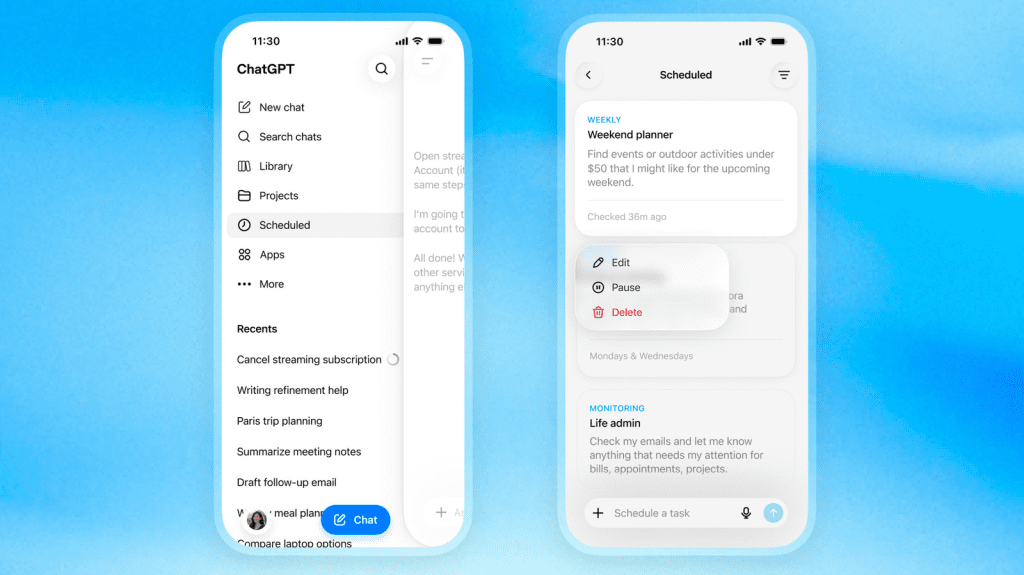
OpenAI has launched a significant upgrade to its background automation features by introducing a dedicated “Scheduled” page in the ChatGPT sidebar, giving ChatGPT scheduled tasks their own control hub.
The new dashboard transforms how users handle recurring automations and reminders, effectively shifting ChatGPT from a purely reactive chatbot into a proactive agent capable of running background workflows completely unattended.
1. What is the “Scheduled” Page Feature?
Previously, users had to dig deep into notification settings or click on individual chat logs to track background activities. The new rollout establishes a central control hub in the main sidebar.
From this single surface on the web or mobile app, users can:
- View a comprehensive list of all active background automations.
- See precisely when each automation is queued to run next.
- Seamlessly pause, resume, edit, or delete existing tasks without disrupting the original chat threads.
How to Set Up a Scheduled Task in ChatGPT
- Open the new Scheduled page from the ChatGPT sidebar on the web or mobile app.
- Create a task by describing the recurring prompt you want ChatGPT to run, such as a daily summary or a web-monitoring check.
- Set the timing, either a specific time or a broader window like “Every morning” or “Each afternoon.”
- Choose whether it is a standard recurring task or a “Monitoring” task that only alerts you when a meaningful change is detected.
- Manage it later from the same page, where you can pause, resume, edit, or delete the task without disrupting the original chat thread.
2. Flexible Timing and “Monitoring” Workflows
The update introduces much smarter scheduling logic and conditional execution rules:
- Vague Timing Windows: Instead of forcing a rigid time (e.g., exactly 7:30 AM), users can now command broader windows like “Every morning” or “Each afternoon,” allowing OpenAI to optimize backend processing server loads.
- Smart Web Monitoring: Instead of blindly running a prompt and repeating the same data, “Monitoring” tasks can scan the web or check connected tools (like Gmail or Google Calendar) and only trigger a push alert or email notification if a meaningful change is detected.
- The Retirement of ‘Pulse’: As part of this rollout, OpenAI is officially discontinuing Pulse—the daily proactive briefing tool. All asynchronous research, daily summaries, and memory-tracking automations are being fully consolidated into Scheduled Tasks.
3. Tier-Based Limits and Guardrails
Because running prompts in the background requires continuous server overhead, OpenAI has capped active automated tasks based on your subscription tier. This kind of always-on compute is part of OpenAI’s rising compute costs:
| Subscription Plan | Active Task Capacity |
| Go (Free Tier) | Up to 3 active tasks |
| Plus (Premium) | Up to 5 active tasks |
| Business / Edu | Up to 10 active tasks |
| Pro / Enterprise | Up to 15 active tasks |
Operational Rules to Keep in Mind:
- The Hourly Ceiling: Tasks are hard-capped and cannot execute more than once per hour, ruling out sub-hourly live tracking.
- The Inactivity Pause: If you ignore or leave automated task outputs unattended for an extended period, ChatGPT will automatically pause the task to preserve computing resources.
- Tool Exclusions: Background tasks cannot access files nested inside “Projects,” and they completely exclude Voice Chats, webhooks, or custom GPTs. Deleting a chat thread associated with a task will instantly pause its automation loop. Enterprise teams adopting these workflows include large customers like those in Samsung’s ChatGPT Enterprise rollout.
Frequently Asked Questions
How many scheduled tasks can free users create?
Free users on the Go tier can keep up to 3 active scheduled tasks. The Plus plan allows up to 5, Business and Edu allow up to 10, and Pro and Enterprise allow up to 15 active tasks. Across all tiers, a task cannot run more than once per hour.
What replaced ChatGPT Pulse?
The new Scheduled Tasks feature replaced Pulse, OpenAI’s daily proactive briefing tool. As part of this rollout, OpenAI discontinued Pulse and consolidated all asynchronous research, daily summaries, and memory-tracking automations into the Scheduled page.
How do ChatGPT scheduled tasks work?
You create a task from the Scheduled page by describing a recurring prompt and choosing either a fixed time or a flexible window like “Every morning,” then pick a standard recurring task or a Monitoring task. ChatGPT then runs that prompt unattended in the background—up to once per hour—and a Monitoring task only sends an alert when it detects a meaningful change.
What can you do with ChatGPT scheduled tasks?
Common use cases include daily summaries and briefings, recurring reminders, and web-monitoring checks that watch a page or a connected tool such as Gmail or Google Calendar and notify you only when something changes. Background tasks cannot access files inside “Projects” and exclude Voice Chats, webhooks, and custom GPTs.